Pet Cameras & Monitors · 8 min
How to Set Up a Pet Camera: Wi-Fi, Placement, and Training Tips
Learn how to set up a pet camera with step-by-step Wi-Fi troubleshooting, optimal placement tips, and dog training advice for a stress-free monitoring experience.
Introduction
Setting up a pet camera should be the easy part of leaving your dog home alone — but between Wi-Fi connection failures, confusing placement choices, and a dog who thinks the new gadget is a chew toy, plenty of pet parents hit snags before they ever see that first live feed. The good news is that nearly every common setup problem has a straightforward fix once you know what is actually going wrong.
This guide walks you through the three things that trip up dog owners most: getting your camera connected to Wi-Fi (especially the notorious 2.4 GHz issue), choosing the right spot in your home, and helping your dog adjust to the device so it becomes a positive part of their routine. If you are still choosing a camera, our Furbo 360° Dog Camera review covers one of the most popular options for dog parents, and our Furbo 360° vs. Furbo Mini 360° comparison can help you pick the right model.
Why 2.4 GHz Wi-Fi Is the #1 Pet Camera Setup Problem
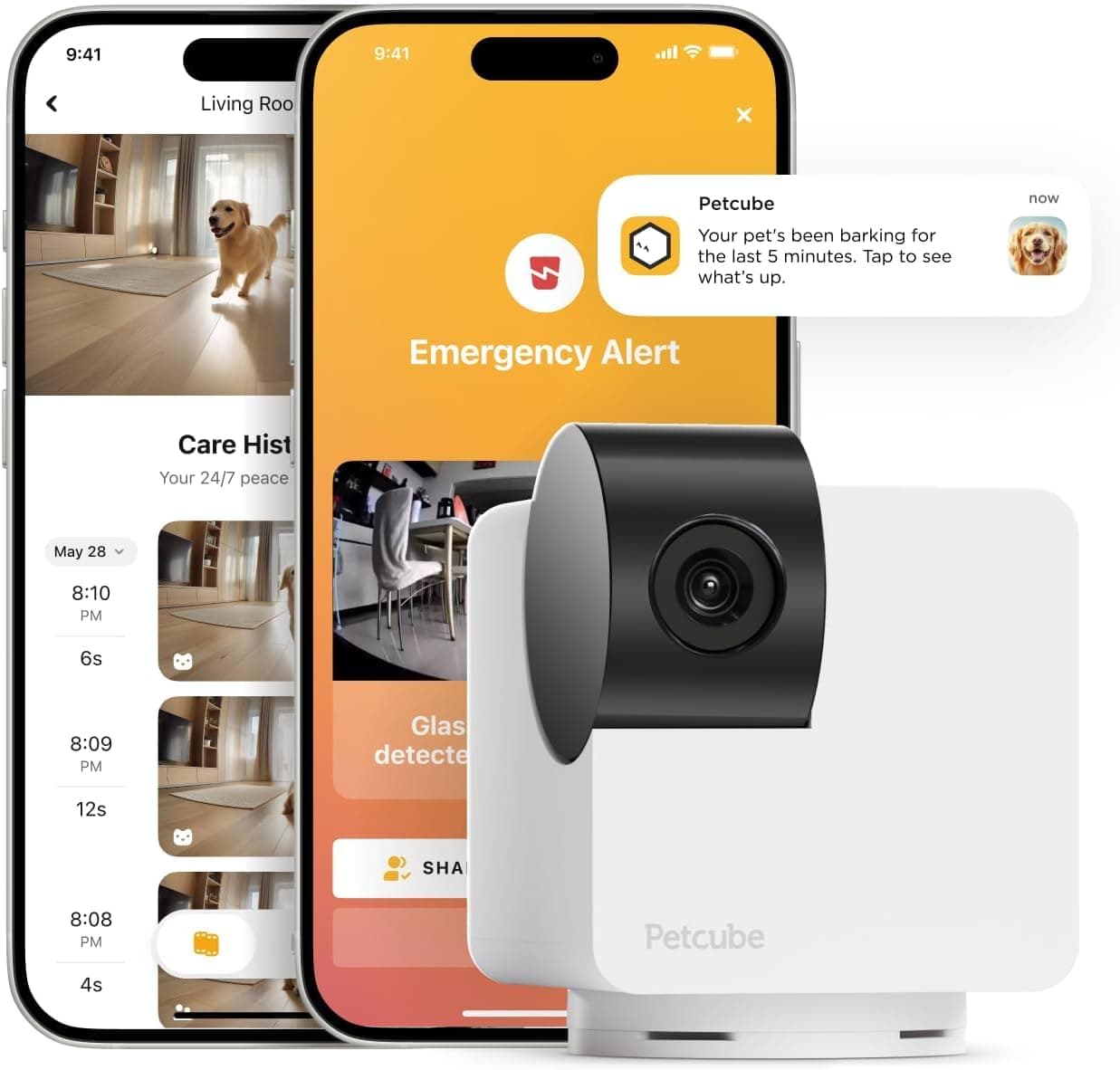
Most pet cameras on the market — including the Furbo 360°, Petcube Cam, and many eufy models — require a 2.4 GHz Wi-Fi connection. The reason is practical: 2.4 GHz signals reach farther through walls and draw less power, which matters when your camera is in a back bedroom far from the router. The problem arises because most modern mesh routers (Eero, Google Nest Wi-Fi, TP-Link Deco, and others) broadcast both 2.4 GHz and 5 GHz under a single network name and use "band steering" to push your phone to the faster 5 GHz band. During setup, your phone and camera end up on different frequencies and cannot find each other.
The quickest fix is the distance trick: put your phone in airplane mode, re-enable Wi-Fi, then walk away from your router until the signal drops and walk back slowly. At the edge of range, your phone falls back to 2.4 GHz, putting it on the same band as your camera. Complete setup at that spot, then move the camera to its permanent location. If that does not work, check whether your router lets you split bands into separate network names — TP-Link Deco and ASUS routers make this relatively easy. For routers that cannot split bands (like Google Nest Wi-Fi), a budget travel router like the GL.iNet Mango on Amazon creates a dedicated 2.4 GHz network for under $30. You can also check your Wi-Fi security protocol: some pet cameras cannot handshake with WPA3-only networks, so switching to WPA2-PSK (AES) may resolve persistent connection failures. For a deeper dive into smart pet device Wi-Fi troubleshooting, this smart pet device Wi-Fi fix guide covers router-specific solutions.
Step-by-Step: Connecting Your Pet Camera to Wi-Fi
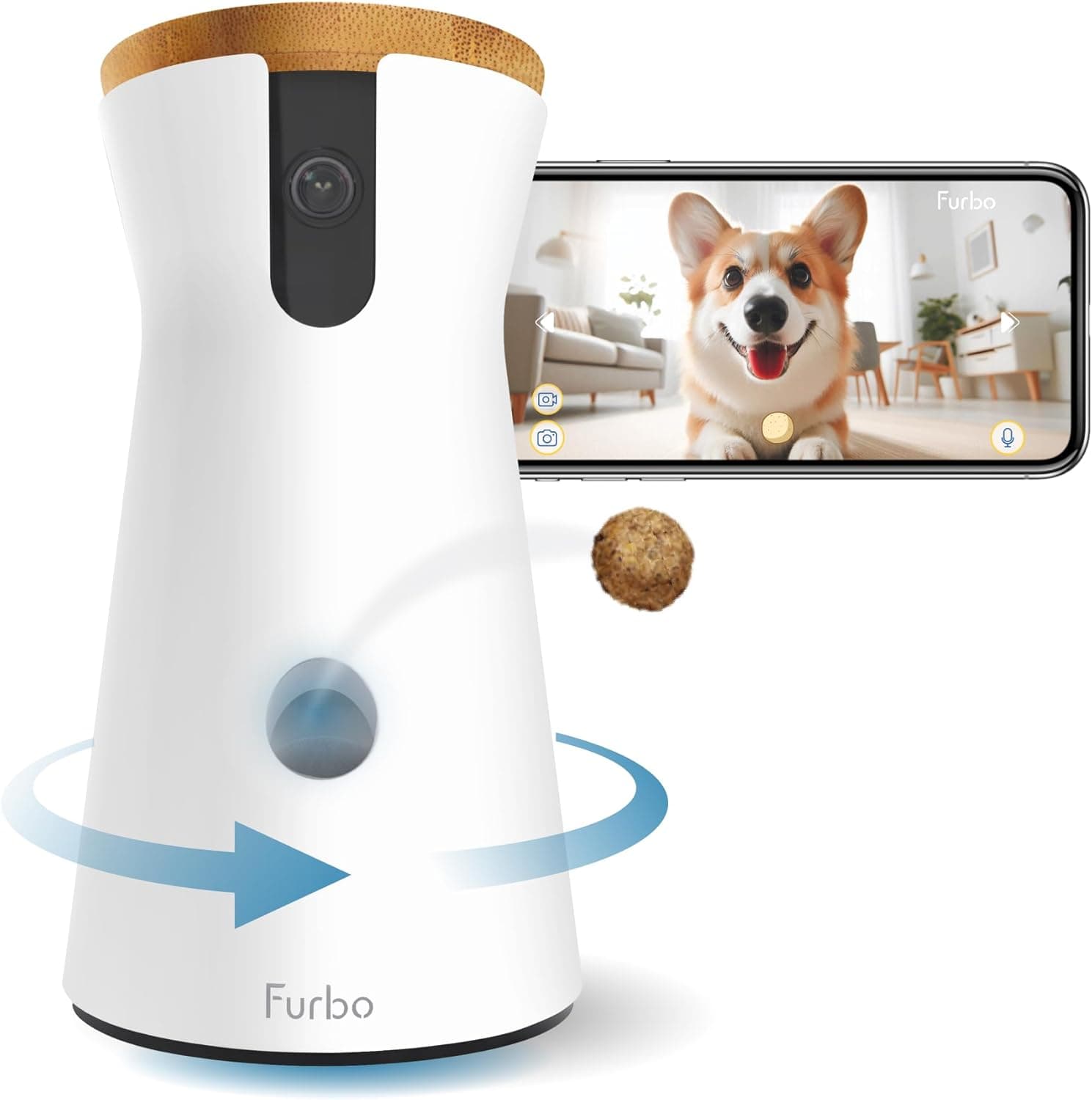
Once you understand the 2.4 GHz issue, the actual connection process is similar across most pet camera brands. Here is a general walkthrough using the Furbo 360° as an example, since it is one of the most commonly searched setups. First, download the manufacturer's app (Furbo app on iOS or Android) and create an account. Turn on your phone's Bluetooth — many newer cameras use Bluetooth for initial device discovery. Plug in the camera using a power adapter that outputs 5V/2A (note: the Furbo 360° does not include an adapter in the box, so you may need a compatible USB power adapter from Amazon). Wait for the status light to blink yellow, which indicates the camera is in pairing mode.
Open the app, select your camera model, and the app should detect it via Bluetooth. Choose your 2.4 GHz Wi-Fi network and enter your password. If the app cannot find your network, make sure your phone is connected to the same 2.4 GHz network and that the network name is not hidden. Keep the SSID under 31 characters and avoid special characters like apostrophes or @ symbols, which can cause silent pairing failures. After a few minutes, the camera should connect and prompt you to name it. If setup fails after multiple attempts, try a hard reset (hold the button for 30 seconds on the Furbo 360°) and start fresh. You can find Furbo's official setup guide on their Furbo 360° setup help page.
Where to Place Your Pet Camera for the Best View
Placement affects everything: video quality, motion detection accuracy, treat-tossing distance (if your camera has that feature), and whether your dog can knock the device over. Furbo recommends placing their 360° camera 22 to 45 inches above the floor — roughly 3 to 4 feet — which provides a wide viewing angle and lets treats fly farther if you use that feature. For cameras with a 360° rotating view, a corner of the living room often gives you the best full-room coverage. Position the camera where your dog spends the most time, and keep the surrounding area clear of clutter so motion detection works reliably.
Avoid placing the camera facing a bright window, as backlighting washes out the image and makes it hard to see your dog's details. If your camera has a treat dispenser, keep it out of your dog's reach — a dog that smells treats inside will try to access the device, and a knocked-over camera is both a wasted investment and a potential safety hazard. Test your Wi-Fi signal strength at the intended placement spot before committing; a camera that connects fine near the router may struggle in a back room. If signal is weak, consider a Wi-Fi range extender from Amazon or repositioning your router. For alternative camera options with different form factors, see our Petcube Cam 360 review and our Enabot EBO Air 2 pet camera robot review.
Training Your Dog to Be Comfortable with the Camera
Your dog does not know what a pet camera is — to them, it is a strange object that makes unexpected noises and sometimes shoots projectiles. Introducing it gradually prevents fear and builds a positive association. Start by placing the camera in the room while you are home, turned on but with no treats loaded. Let your dog investigate it at their own pace. Every time the camera makes a sound (chirps, beeps, motor noise), give your dog a treat by hand. This pairs the strange sounds with a reward, which is the foundation of positive reinforcement.
Once your dog is comfortable with the sounds, load the treat dispenser (if your camera has one) and stand next to it while triggering a toss from the app. Use hard, round treats about 0.5 inches in diameter — soft treats like cheese or hot dogs will jam most dispensers. Repeat this 3 to 5 times until your dog reliably comes toward the camera when they hear the toss sound. Then progress to remote practice: go into another room and toss a treat through the app while watching on your phone. If your dog does not come, go back to the previous step. Furbo's official dog warm-up guide recommends tossing treats only while you are home for the first two weeks if your dog shows signs of separation anxiety. For a structured approach to understanding your dog's behavior patterns on camera, our Decoding Your Pet's Hidden Behavioral Metrics guide walks you through what to look for.
Two-Way Audio: Helpful or Harmful for Anxious Dogs?
Two-way audio sounds like a great feature — you can talk to your dog from work and calm them down. In practice, the effect depends entirely on your individual dog. Some dogs settle when they hear a familiar voice. Others become more distressed because they hear you but cannot find you, which can trigger searching behavior, increased vocalization, and frustration. The best approach is to test two-way audio while you are still at home. Go to another room, speak through the camera, and watch your dog's reaction on the live feed. If they start pacing, whining, or running to doors, disable the voice feature for remote use.
If your dog does respond well to your voice, keep interactions brief and calm. Avoid excited tones, which can raise arousal levels. A professional dog trainer's review of the Furbo noted that the treat-toss sound alone is often a better attention-getter than the microphone, since it creates a clear positive association without the confusion of hearing a disembodied voice. For dogs with moderate to severe separation anxiety, hearing the owner's voice without physical reunion can intensify distress — in those cases, rely on treat tossing and silent monitoring instead. If you are building a broader home-alone routine, our 24-Hour Smart Pet Care Framework can help you integrate camera monitoring into a structured daily plan.
Pet Camera Privacy and Security Basics
A pet camera is still a home camera, and it sits in the most personal spaces in your house. Taking a few basic security steps protects both your privacy and your pet's safety. First, use a unique password for your camera account — never reuse your email, banking, or shopping password. Enable two-factor authentication if the app offers it. Furbo supports 2-step verification, and you should turn it on during initial setup. Keep the app, your phone OS, and camera firmware updated, as updates often include security patches.
Review who has access to the camera feed. Remove old pet sitters, roommates, or family members who no longer need it. Consider whether you need cloud recording or if live view and motion-triggered clips are sufficient — less stored footage means less data exposure. Finally, think about what the camera can see beyond your pet. Avoid aiming it at computer screens, mail piles, security keypads, or bedroom doorways. Position it low and focused on the pet area with the smallest useful field of view. The FTC has repeatedly warned that internet-connected cameras need reasonable security, so these steps are not paranoia — they are basic hygiene. For more pet tech finds and trending products, browse our viral pet finds page.
Common Setup Problems and Quick Fixes
Even with good preparation, you may hit a few common issues. If your camera will not connect to Wi-Fi, first confirm you are on a 2.4 GHz network (not 5 GHz) and that your phone is on the same network during setup. Check that your Wi-Fi password is correct — case sensitivity and keyboard language can cause silent failures. If the camera connects but video is choppy or low quality, check your upload speed; most pet cameras recommend at least 2 Mbps upload, with 4 Mbps preferred for smooth streaming. Moving the camera closer to the router or removing obstacles (walls, microwaves, refrigerators) between the camera and router can improve signal.
If your dog keeps knocking the camera over, use the included mounting tape (Furbo includes 3M double-sided strips on the bottom) or place it on a higher surface. If treat tossing jams, switch to smaller, harder, rounder treats and avoid anything sticky or soft. If you are not receiving barking alerts, check that the alert feature is toggled on in the app and adjust sensitivity — set it to "High" for quiet barkers and "Low" for loud, frequent barkers. And if you are comparing cameras before buying, the Furbo 360° Dog Camera on Amazon is a solid choice for treat-tossing and 360° coverage, while our Furbo 360° review breaks down the full feature set.